Key Takeaways
Step-by-step guide to applying for UK ETA using the official mobile app. Learn about NFC passport scanning, photo capture, and payment.
The ETA mobile app is the fastest and most convenient way to apply for your UK Electronic Travel Authorisation directly from your smartphone. Furthermore, the official UK ETA app, available for both iOS and Android devices, guides you through every step of the process in under 10 minutes. In this comprehensive guide, we walk you through the entire application process, from downloading the app to receiving your approved ETA. Moreover, whether you are a first-time visitor or a returning traveller, using the mobile app offers significant advantages over the web-based application.
Downloading the Official UK ETA Mobile App
The first step in your ETA application journey is downloading the correct app. Indeed, it is crucial to use only the official UK ETA app published by the UK Home Office. Furthermore, the app is completely free to download, and you will only pay the £20 application fee when you submit your ETA request. Moreover, beware of third-party apps that charge extra fees or may compromise your personal data.
For iPhone users, search for “UK ETA” in the Apple App Store. The official app is published by the Home Office and has the UK Government crest as its icon. For Android users, the app is available on the Google Play Store under the same name. In addition, ensure your device runs iOS 15 or later, or Android 10 or later, for the best experience. Therefore, if your device is older, consider using the online application portal instead.
What You Need Before Starting Your Application
Preparation is key to a smooth ETA mobile app experience. As a result, gathering all required documents before you begin will save time and prevent errors. Furthermore, having everything ready means you can complete the entire process in a single sitting without interruptions.
You will need your valid biometric passport with at least 6 months remaining validity. In addition, prepare a debit or credit card for the £20 fee payment. Moreover, you will need a recent digital photograph of yourself that meets UK passport photo standards — the app can take this for you using your phone camera. Furthermore, have your travel itinerary details handy, including your planned arrival date and accommodation address in the UK. Indeed, while these details are not binding, providing accurate information speeds up the processing time. For a complete list, see our ETA requirements and documents guide.
Step 1: Creating Your Account in the ETA App
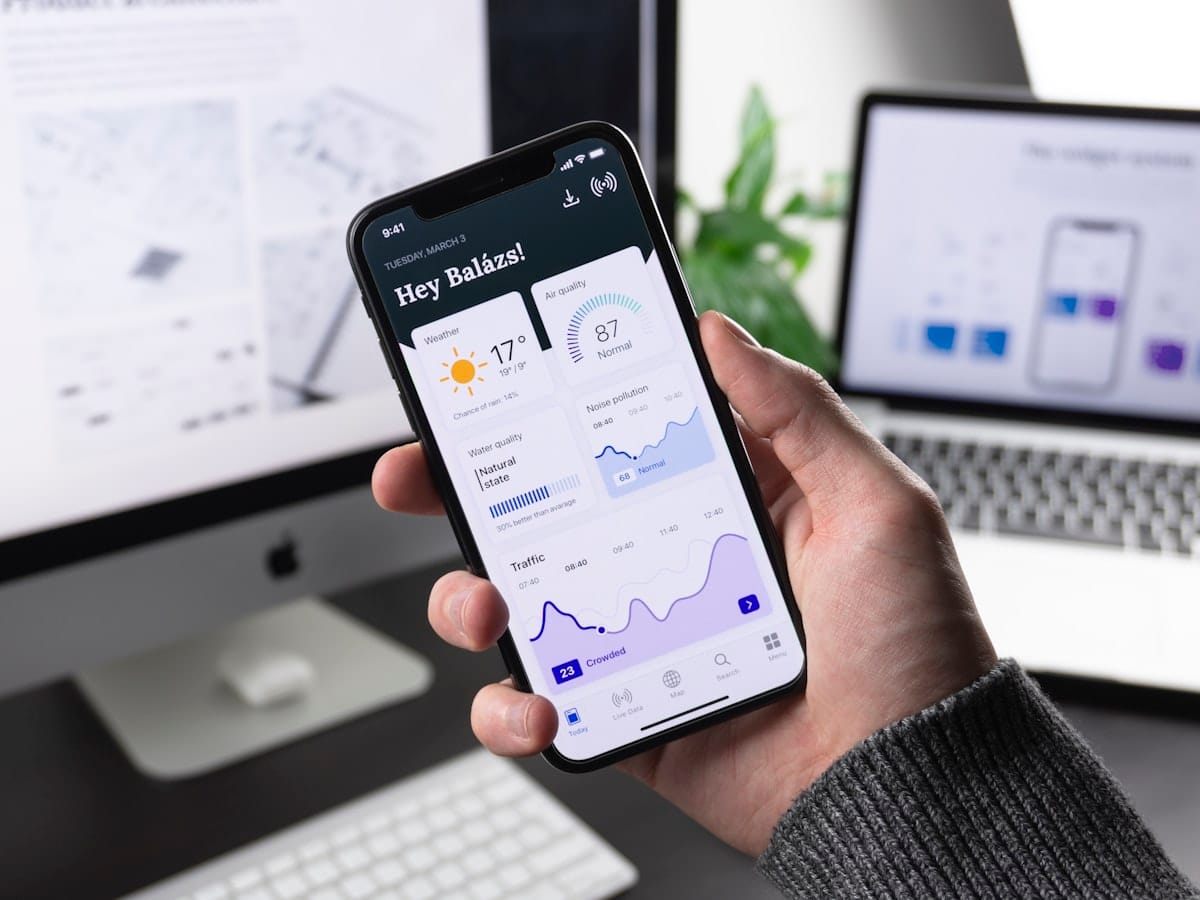
After downloading the ETA mobile app, open it and select “Apply for an ETA.” The app will first ask you to create an account using your email address. Furthermore, you will receive a verification code sent to your email, which you must enter to proceed. Moreover, this account allows you to track your application status and manage future ETA renewals.
Choose a strong password that you can remember, as you will need it to log in and check your application status. In addition, enable notifications so the app can alert you when your ETA is approved. Therefore, make sure your email address is correct and accessible, as all official communications will be sent there. However, if you previously applied for a UK visa or ETA, you may already have an account — simply log in with your existing credentials.
Step 2: Scanning Your Passport with NFC Technology
One of the biggest advantages of using the ETA mobile app is the ability to scan your passport’s biometric chip using NFC (Near Field Communication) technology. As a result, this eliminates the need to manually enter your passport details, reducing errors and speeding up the process significantly.
To scan your passport, hold it against the back of your phone when prompted. Furthermore, keep the passport and phone still for 5-10 seconds while the chip is read. Moreover, the NFC reader is typically located in the upper portion of most smartphones. Indeed, if the scan fails on the first attempt, try removing your phone case, as thick cases can interfere with the signal. In addition, make sure your passport is open to the photo page during the scan. Consequently, the app will automatically extract your name, date of birth, nationality, and passport number from the chip. For more about photo requirements during this step, check our ETA photo requirements guide.
Step 3: Taking Your Biometric Photograph
The ETA mobile app includes a built-in camera feature that captures your biometric photograph. Furthermore, this photo must meet specific standards set by the UK Home Office to ensure facial recognition compatibility at UK border control. Moreover, using the app’s camera is generally easier than uploading a separate photo file.
Position yourself against a plain, light-coloured background with even lighting. In addition, remove glasses, hats, and head coverings (unless worn for religious reasons). Furthermore, look directly at the camera with a neutral expression and keep your mouth closed. The app will provide real-time guidance, showing you when your face is correctly positioned. Indeed, if the photo does not meet the required standards, the app will ask you to retake it. Therefore, find a well-lit location before starting this step. As a result, most applicants get an acceptable photo within two or three attempts.
Step 4: Answering the Eligibility Questions

The ETA mobile app will present a series of eligibility and security questions that you must answer honestly. Furthermore, these questions cover your travel history, criminal record, and immigration status. Moreover, providing false information can result in your ETA being refused and may affect future UK visa applications.
Typical questions include whether you have ever been refused entry to the UK, whether you have any unspent criminal convictions, and whether you have previously overstayed a UK visa. In addition, you will be asked about your planned activities in the UK and your intended length of stay. However, remember that the ETA allows stays of up to 6 months per visit. Therefore, if you plan to work or study, you will need a different type of visa. Indeed, for more information on how criminal history affects your application, see our criminal record and ETA guide.
Step 5: Paying the ETA Application Fee
After completing all questions, the ETA mobile app will prompt you to pay the £20 application fee. Furthermore, the app accepts Visa, Mastercard, American Express, Apple Pay, and Google Pay. Moreover, all payments are processed securely through the UK Government’s payment gateway.
The payment is processed in British pounds (GBP). As a result, if you are paying with a card in a different currency, your bank may apply a foreign transaction fee. In addition, some banks may flag the payment as suspicious if it originates from abroad, so consider notifying your bank beforehand. However, once payment is confirmed, your application is officially submitted and you will receive a confirmation email. For details on all accepted payment methods, visit our ETA payment methods page. Indeed, since the recent fee increase in April 2026, ensuring your payment goes through smoothly is even more important.
Step 6: Submitting and Tracking Your Application
Once payment is complete, your ETA application is submitted for review by UK Visas and Immigration. Furthermore, the ETA mobile app allows you to track your application status in real-time through the “My Applications” section. Moreover, most applications receive a decision within 3 working days, though many are approved within hours.
You will receive push notifications and email updates at each stage of the process. In addition, the app will clearly display whether your ETA has been approved, is pending further review, or has been refused. Therefore, check the app regularly after submission, especially if you are travelling soon. Indeed, for detailed information on processing times, see our ETA processing time guide. However, if your application takes longer than 3 working days, do not panic — some applications require additional security checks.
Comparison: ETA Mobile App vs Online Portal

The UK Government offers two ways to apply for an ETA: the mobile app and the online web portal. Furthermore, understanding the differences between these two methods helps you choose the best option for your situation. Moreover, both methods cost the same £20 fee and have identical processing times.
| Feature | ETA Mobile App | Online Web Portal |
|---|---|---|
| Passport Scanning | NFC chip scan (automatic) | Manual entry required |
| Photo Capture | Built-in camera with guidance | Upload photo file |
| Application Time | 5-10 minutes | 15-20 minutes |
| Payment Methods | Card + Apple Pay + Google Pay | Card only |
| Status Tracking | Push notifications + in-app | Email updates only |
| Offline Capability | Partial (can start offline) | Requires internet throughout |
| Device Requirement | NFC-enabled smartphone | Any device with a browser |
| Biometric Verification | Live facial scan available | Not available |
As this comparison shows, the ETA mobile app offers several advantages, particularly the NFC passport scanning and built-in photo capture features. Consequently, we recommend the app for most travellers. However, if your phone lacks NFC capability or runs an older operating system, the online portal is a reliable alternative.
Troubleshooting Common ETA App Issues
While the ETA mobile app is generally reliable, some users encounter technical issues during the application process. Furthermore, knowing how to resolve common problems can save you significant time and frustration. Moreover, most issues have simple solutions that do not require contacting support.
If the NFC passport scan fails repeatedly, try removing your phone case and holding the passport flat against the back of your phone. In addition, ensure your phone’s NFC feature is enabled in the settings. Furthermore, if the app crashes during the photo capture step, close and reopen the app — your progress is automatically saved. However, if payment fails, check that your card has sufficient funds and that your bank has not blocked the transaction. Indeed, clearing the app cache or updating to the latest version often resolves persistent issues. For more on potential problems with your application, see our ETA status check guide.
After Your ETA Is Approved: What Happens Next
Once your ETA is approved through the mobile app, it is electronically linked to your passport. Furthermore, there is no physical document or sticker — the ETA is entirely digital. Moreover, border control officers can verify your ETA automatically when you arrive in the UK by scanning your passport.

Your approved ETA is valid for 2 years from the date of issue, allowing multiple entries to the UK with stays of up to 6 months each. In addition, you should save or screenshot your approval confirmation for your records. However, remember that having an ETA does not guarantee entry to the UK — the final decision rests with the border officer. Therefore, carry supporting documents such as your hotel booking confirmation, return flight tickets, and proof of sufficient funds. For complete guidance on what to prepare, see our UK entry requirements checklist.
Frequently Asked Questions About the UK ETA Mobile App
Is the UK ETA mobile app free to download?
Yes, the official UK ETA mobile app is completely free to download from both the Apple App Store and Google Play Store. The only cost is the £20 application fee, which you pay when submitting your ETA application through the app.
How long does it take to complete the ETA application on the app?
Most applicants complete the entire ETA mobile app application process in 5 to 10 minutes, provided they have their passport and payment details ready. The NFC passport scanning feature significantly reduces the time compared to manual data entry on the web portal.
Can I apply for my family members using one phone?
Yes, you can submit multiple ETA applications from a single device. However, each family member needs their own separate application with their own passport scan and biometric photo. Furthermore, each application requires a separate £20 fee payment. For family travel guidance, see our family application guide.
What happens if my phone does not have NFC?
If your phone does not have NFC capability, you can still use the app but will need to enter your passport details manually. Alternatively, you can use the online web portal at gov.uk, which does not require NFC. Indeed, manual entry takes slightly longer but produces the same result.
Can I save my application and complete it later?
Yes, the ETA mobile app automatically saves your progress. You can close the app at any point and return later to continue where you left off. Furthermore, your saved data remains available for up to 30 days before the incomplete application expires.
What should I do if my ETA application is refused?
If your application is refused, the app will provide the reason for the refusal and information about your options. You may be able to apply again or request an administrative review. Moreover, a refused ETA does not automatically prevent you from applying for a UK visa through other channels. For detailed guidance, see our ETA appeal process guide.
Does the ETA mobile app work outside the UK?
Yes, the app is designed to be used from anywhere in the world. In fact, you should apply for your ETA before travelling to the UK. Furthermore, the app works on both Wi-Fi and mobile data connections, and you can start the application process even with limited connectivity.
 English
  العربية
  বাংলা
বাংলা  Български
  Català
  简体中文
简体中文  Hrvatski
  Čeština
  Dansk
Dansk  Nederlands
  Eesti
Eesti  Suomi
Suomi  Français
  Deutsch
  Ελληνικά
  עִבְרִית
  हिन्दी
  Magyar
  Íslenska
  Bahasa Indonesia
  Italiano
  日本語
日本語  한국어
한국어  Latviešu valoda
  Lietuvių kalba
  Bahasa Melayu
  Norsk bokmål
  Polski
  Português
  Română
  Slovenčina
  Slovenščina
  Español
  Svenska
  Türkçe
  Tiếng Việt